
Installing extensions in Magento 2 is a fundamental skill for developers working with this powerful e-commerce platform. Whether you’re adding new functionality to your store or extending existing capabilities, knowing how to properly install extensions can save you hours of debugging and prevent critical errors.
Magento 2 provides multiple methods to install extensions, but the most reliable and recommended approaches are using Composer from the Magento Marketplace or the command-line interface. This guide covers both methods in detail, including prerequisites, step-by-step instructions, essential CLI commands, and solutions for common installation issues.
Prerequisites for Installing Magento 2 Extensions
Before you begin installing any extension, ensure your development environment meets these requirements:
- Magento 2 installed and running (version 2.3 or higher recommended)
- SSH access to your server
- Composer installed on your server
- A Magento Marketplace account (for marketplace extensions)
- Marketplace access keys (public and private)
- Sufficient file and directory permissions
- Database backup before installing any extension
Having these prerequisites in place ensures a smooth installation process and allows you to quickly troubleshoot any issues that may arise.
Method 1: Install Magento 2 Extensions from Marketplace Using Composer
Composer is the recommended and most reliable method for installing Magento 2 extensions from the official Marketplace. This method manages dependencies automatically and ensures your installation remains clean and maintainable.
Step 1: Generate Your Magento Marketplace Access Keys
Your Magento Marketplace access keys authenticate your installation when downloading extensions. To generate them:
- Log in to your Magento Marketplace account at marketplace.magento.com
- Click your profile icon in the upper-right corner and select Account
- In the left sidebar, click Access Keys
- Click Create A New Access Key
- Give your key a name (e.g., “Production Server”) and click OK
- Copy your public key and private key to a secure location
Step 2: Configure Composer with Your Access Keys
Composer needs your access keys to authenticate with the Magento Marketplace repository. You can configure this in two ways:
Option A: Interactive Composer Authentication
When you first run the composer require command, Composer will prompt you to enter your credentials interactively. Simply paste your public key as the username and private key as the password when prompted.
Option B: Configure auth.json
For persistent authentication, you can configure your keys in a global auth.json file:
composer config --global --auth-http-basic repo.magento.com [PUBLIC_KEY] [PRIVATE_KEY]Replace [PUBLIC_KEY] and [PRIVATE_KEY] with your actual Marketplace keys.
Step 3: Find Your Extension’s Composer Package Name
Each Magento extension has a unique composer package name. To find it:
- Log in to the Magento Marketplace
- Search for your desired extension
- Click the extension to view its details
- Locate the Technical Details section
- Find the Composer Require or Extension Name field, which displays the complete package name
The package name typically follows this format: vendor/extension-name. For example: amasty/module-admin-actions or mageworx/advanced-custom-options.
Step 4: Navigate to Your Magento Root Directory
Open your terminal and navigate to your Magento 2 installation root directory:
cd /path/to/magentoThe root directory is where you’ll find subdirectories like app, bin, pub, vendor, and var.
Step 5: Install the Extension Using Composer
Run the composer require command with your extension’s package name:
composer require vendor/extension-nameExample with Mailchimp extension:
composer require mailchimp/mc-magento2Composer will fetch the extension, download its dependencies, and place all files in the correct locations within your project. This process may take several minutes depending on your connection and the extension’s complexity.
Step 6: Run Magento Setup and Configuration Commands
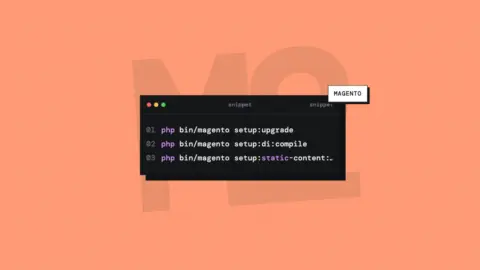
After Composer completes the download, you must run several Magento CLI commands to properly integrate the extension into your installation. These commands update your database, compile code, and generate static files.
php bin/magento setup:upgrade
php bin/magento setup:di:compile
php bin/magento setup:static-content:deploy -f
php bin/magento cache:clean
Step 7: Verify Installation
After running the setup commands, verify that your extension installed correctly:
- Log in to your Magento Admin panel
- Navigate to Stores → Apps → Extensions → Installed Extensions
- Search for your extension by name
- Confirm its status shows as Enabled
Some extensions add new menu items or configuration options to the Admin panel. Locate your extension’s settings if available, typically found under Stores → Configuration or through a dedicated admin menu.
Method 2: Install Magento 2 Extensions via CLI Using Zip File
If you have a direct extension file (downloaded as a ZIP file) or prefer manual installation, you can install extensions using the command line without Composer. This method is common for extensions purchased directly from third-party developers.
Step 1: Download and Prepare Your Extension
Download your extension ZIP file from your email, account dashboard, or your developer’s website. Keep the ZIP file for reference during installation.
Step 2: Extract and Identify the Module Name
Before uploading, examine the extension’s structure:
- Extract the ZIP file to a temporary folder on your computer
- Locate the
composer.jsonfile inside the extracted folder - Open
composer.jsonwith a text editor - Look for the
"name"field, which shows the vendor and module name (e.g., “bss/ajaxcart”) - Find the
"psr-4"section to confirm the module structure
For example, if composer.json contains "Bss\AjaxCart\", your module name is AjaxCart and vendor is Bss.
Step 3: Create the Correct Directory Structure
You must place your extension in the correct directory path within your Magento installation. Create the following directory structure in your Magento root:
app/code/Vendor/ModuleNameReplace Vendor with your extension’s vendor name and ModuleName with the module name from the composer.json file.
Example:
app/code/Bss/AjaxCartYou can create this directory structure using FTP, SFTP, or command line:
mkdir -p app/code/Bss/AjaxCartStep 4: Upload Extension Files
Upload all files from the extracted extension ZIP folder into the directory you created. Maintain the exact folder structure and file hierarchy to ensure the extension functions correctly.
Using SFTP or FTP:
- Connect to your server via SFTP/FTP
- Navigate to the
app/code/Vendor/ModuleNamedirectory - Upload all extension files and folders from your extracted ZIP
- Verify that key files like
registration.phpandetc/module.xmlare in place
Step 5: Set Correct File Permissions
Ensure your uploaded files have the correct permissions for Magento to access them:
chmod -R 755 app/code/Vendor/ModuleNameStep 6: Run Magento Setup Commands via SSH
SSH into your server and navigate to your Magento root directory, then run these commands:
cd /path/to/magento
php bin/magento setup:upgrade
php bin/magento setup:di:compile
php bin/magento setup:static-content:deploy
php bin/magento cache:clean
For production environments, use the force flag and specify production mode:
php bin/magento setup:static-content:deploy --force -s standardStep 7: Verify Installation in Admin
Log into your Magento Admin panel and verify the extension appears in the installed extensions list with an enabled status.
Understanding Essential Magento 2 CLI Commands
Understanding what each setup command does helps you troubleshoot issues and optimize your installation process:
| Command | Purpose | What It Does |
|---|---|---|
php bin/magento setup:upgrade |
Database and Module Registration | Registers the module, runs database schema upgrades, and updates the module configuration. This is required after any extension installation or update. |
php bin/magento setup:di:compile |
Dependency Injection Compilation | Generates Magento code for dependency injection, plugins, and preferences. Improves performance in production mode. |
php bin/magento setup:static-content:deploy |
Static Files Generation | Generates and deploys static content (CSS, JavaScript, images) for specific locales and themes. Essential for production environments. |
php bin/magento cache:clean |
Cache Clearing | Clears specific cache types while keeping others. Faster than flush and recommended for development. |
php bin/magento cache:flush |
Complete Cache Reset | Flushes all cache storage, including third-party caches. More thorough than clean but slower. |
composer require vendor/extension |
Install via Composer | Downloads extension and dependencies from Composer repositories, updates composer.lock file. |
composer update |
Update Dependencies | Updates all dependencies to the latest compatible versions specified in composer.json. |
Post-Installation Configuration and Best Practices
After successfully installing an extension, follow these best practices to ensure optimal performance and stability:
1. Review Extension Documentation
Each extension comes with specific configuration requirements. Read the developer’s documentation for setup instructions, configuration options, and any special requirements for your Magento version.
2. Test in Development Environment First
Always install and test extensions in a development or staging environment before deploying to production. This allows you to identify compatibility issues and configuration problems without affecting your live store.
3. Check Compatibility
Verify that the extension version is compatible with your Magento version, PHP version, and any other extensions you’re currently running. Version conflicts can cause critical errors.
4. Enable Extension Logging
Some extensions provide detailed logging options. Enable these during initial setup to help identify any configuration or runtime issues:
php bin/magento config:set system/logging/extension_debug_enabled 15. Monitor Performance Impact
After installation, monitor your store’s performance metrics. Some extensions can significantly impact page load times or database performance. Use tools like New Relic, Blackfire, or Magento’s built-in profiling to identify performance bottlenecks.
6. Keep Extensions Updated
Regularly check for extension updates. Updates often include security patches, bug fixes, and compatibility improvements with newer Magento versions.
7. Maintain Regular Backups
Always maintain up-to-date database and file backups. If an extension causes problems, you can quickly restore your store to a known good state.
Common Magento 2 Extension Installation Errors and Solutions
Despite following proper procedures, installation issues can occur. Here are solutions to the most common problems:
Error: “Specified Key Was Too Long”
Cause: Your database character set or collation is incompatible with the extension’s database schema.
Solution: Ensure your database uses UTF-8MB4 character set and utf8mb4_unicode_ci collation. Update your app/etc/env.php file to specify the correct character set.
Error: “Class Does Not Exist” or “Fatal Error”
Cause: Files were not uploaded correctly, or setup commands were not executed.
Solution: Verify all extension files are in the correct directory structure. Re-run the setup commands:
php bin/magento setup:upgrade php bin/magento setup:di:compileError: “Could Not Find Matching Version”
Cause: Composer cannot find a version of the extension compatible with your Magento version.
Solution: Check the extension documentation for version compatibility. You may need to specify a particular version:
composer require vendor/extension:1.2.3Error: “Authentication Required” in Composer
Cause: Your Marketplace access keys are invalid or not configured correctly.
Solution: Regenerate your access keys in the Marketplace and reconfigure Composer. Test authentication manually:
composer config --auth-http-basic repo.magento.com [PUBLIC_KEY] [PRIVATE_KEY]Blank Admin Page or 500 Error After Installation
Cause: Extension conflicts with existing code, or static content was not properly deployed.
Solution: Clear your cache and redeploy static content:
php bin/magento cache:flush php bin/magento setup:static-content:deploy --forceIf the problem persists, enable developer mode to see detailed error messages:
php bin/magento deploy:mode:set developerMemory Limit Exceeded During setup:upgrade
Cause: PHP memory limit is too low for the extension’s database operations.
Solution: Increase your PHP memory limit in php.ini or as a command flag:
php -d memory_limit=2G bin/magento setup:upgradeFrequently Asked Questions About Magento 2 Extension Installation
What’s the difference between setup:upgrade and setup:di:compile?
setup:upgrade handles database schema changes and module registration. setup:di:compile generates code for dependency injection and optimizes class loading. Both are recommended for production environments, but di:compile is optional for development.
Can I install extensions in production mode?
Yes, but it’s not recommended. Production mode requires pre-generated static content. If you must install in production, switch to developer mode temporarily, install the extension, run all setup commands, then switch back to production mode.
Why should I use Composer instead of manual upload?
Composer automatically manages dependencies, version constraints, and code updates. Manual installation is more error-prone and doesn’t track extension versions. Composer is always the recommended approach.
How often should I update installed extensions?
Check for updates monthly, or immediately if security vulnerabilities are announced. Major Magento version updates sometimes require extension updates for compatibility.
What if an extension breaks my store?
Restore your database and file backups, disable the extension in app/etc/config.php, or uninstall it using Composer with composer remove vendor/extension. Always test extensions in development first.
Do I need technical knowledge to install extensions?
Marketplace extensions installed via Composer require basic command-line familiarity. For manual installation, you need to understand directory structures and file permissions. Either way, following this guide step-by-step will work for most developers.
Conclusion
Installing Magento 2 extensions using Composer or the CLI is a straightforward process when you follow the proper steps and understand what each command does. The Composer method from the Marketplace is recommended for most developers because it handles dependencies automatically and provides easier version management.
Key takeaways:
- Always generate Magento Marketplace access keys before installing extensions
- Use Composer to install Marketplace extensions whenever possible
- Run all required setup commands after installation:
setup:upgrade,setup:static-content:deploy, and cache:clean - Test extensions in development environments before deploying to production
- Maintain current backups and documentation of your installed extensions
- Review extension-specific documentation for additional configuration requirements
Whether you’re adding payment gateways, inventory management tools, or advanced customer features, properly installed extensions ensure your Magento store remains stable, secure, and maintainable. By following this guide and understanding the underlying CLI commands, you’ll be equipped to handle extension installations with confidence, troubleshoot common issues, and keep your development workflow efficient.
Ready to expand your Magento store’s functionality? Start by choosing an extension from the Magento Marketplace, generate your access keys, and follow the Composer installation method outlined in this guide. For questions about specific extensions or advanced configuration, consult the official documentation or reach out to the extension developer for support.
Comments