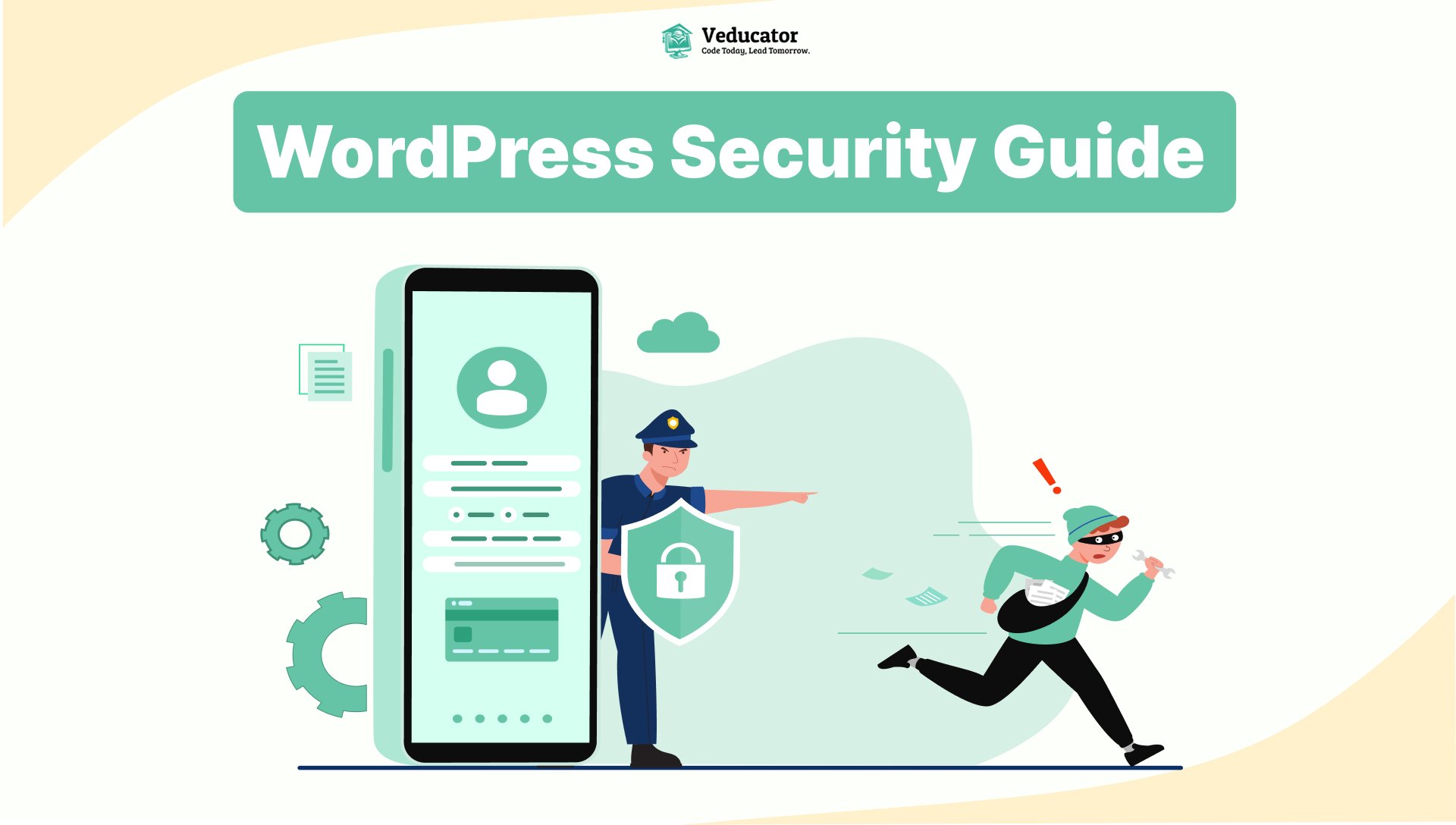

WordPress is the most popular content management system in the world, powering over 40% of all websites. However, its popularity also makes it a prime target for hackers, malware attacks, and brute force attempts.
If WordPress security is ignored, your website can be hacked, infected with malware, redirected to spam websites, or even blacklisted by Google. This can result in data loss, SEO ranking drops, revenue loss, and damaged brand trust.
In this comprehensive WordPress security guide, you will learn how to secure a WordPress website step by step using proven, SEO-friendly best practices. Whether you run a blog, business website, or WooCommerce store, this guide will help you protect your WordPress site from hackers.
Why WordPress Website Security Is Critical in 2026
Many website owners believe that only large websites get hacked. This is incorrect. Most WordPress attacks are automated, targeting websites with common vulnerabilities.
Common WordPress Security Threats
- Brute force login attacks
- Malware and virus injection
- SQL injection attacks
- Cross-site scripting (XSS)
- Spam redirects
- Data theft
If your website security is weak, hackers don’t need to target you specifically. Bots will find your site automatically.
1. Choose Secure WordPress Hosting
Your hosting provider is the foundation of WordPress security. No plugin can protect a website hosted on an insecure server.
Features of Secure WordPress Hosting
- Built-in firewall protection
- Malware scanning and removal
- Free SSL certificate
- Automatic backups
- Updated PHP versions
- Server-level security rules
Best Hosting Options for WordPress Security
- Managed WordPress hosting
- Cloud hosting with WAF
- VPS hosting for high-traffic sites
Avoid low-quality shared hosting, as it often lacks advanced security measures.
2. Keep WordPress Core, Themes, and Plugins Updated
Running outdated WordPress software is the most common reason websites get hacked.
Why WordPress Updates Matter
- Fix known security vulnerabilities
- Patch malware exploits
- Improve compatibility and speed
- Protect against new attack methods
Best Practices for Updates
- Enable automatic WordPress core updates
- Update plugins and themes weekly
- Delete unused themes and plugins
- Use only trusted developers
Never install nulled or pirated plugins/themes, as they frequently contain hidden malware.
3. Use Strong WordPress Login Credentials
Weak usernames and passwords make your website an easy target.
WordPress Password Security Tips
- Use at least 12–16 characters
- Combine uppercase, lowercase, numbers, and symbols
- Avoid personal information
- Use a password manager
Additional Login Security Measures
- Avoid using “admin” as username
- Limit administrator accounts
- Remove inactive users
4. Enable Two-Factor Authentication (2FA)
Two-factor authentication adds an extra security layer by requiring a second verification method during login.
Benefits of Two-Factor Authentication
- Prevents unauthorized access
- Protects against stolen passwords
- Improves admin panel security
Popular 2FA options include Google Authenticator, email verification, and authentication apps.
5. Install a WordPress Security Plugin
A WordPress security plugin helps monitor, detect, and block security threats in real time.
Essential Security Plugin Features
- Web application firewall (WAF)
- Malware scanning
- Brute force protection
- Login attempt limits
- File integrity monitoring
Best WordPress Security Plugins
Configure these plugins properly for maximum protection.
6. Secure the WordPress Login Page
The WordPress login page is the most attacked part of any website.
How to Protect WordPress Login Page
- Limit login attempts
- Change default login URL
- Add CAPTCHA verification
- Block suspicious IP addresses
- Enable two-factor authentication
These steps significantly reduce brute force attacks.
7. Use SSL Certificate and HTTPS
SSL encryption protects sensitive data such as login credentials and payment information.
Benefits of HTTPS for WordPress
- Encrypts user data
- Improves SEO rankings
- Builds visitor trust
- Required for WooCommerce websites
Most hosting providers offer free SSL certificates, so there is no excuse not to use HTTPS.
8. Set Correct File and Folder Permissions
Incorrect permissions can allow hackers to upload malicious scripts.
Recommended WordPress Permissions
- Files: 644
- Folders: 755
- wp-config.php: 600
Avoid using 777 permissions, as they expose your website to serious security risks. Check detail article on How to change file and folder permissions using command line.
9. Disable File Editing in WordPress Admin
WordPress allows file editing from the admin dashboard, which can be dangerous if an attacker gains access.
Disable File Editing (Recommended)
Add the following line to wp-config.php:
define('DISALLOW_FILE_EDIT', true);
This prevents hackers from injecting malicious code via the admin panel.
10. Backup Your WordPress Website Regularly
Backups are your final safety net.
If your website is hacked or crashes, backups allow instant recovery.
WordPress Backup Best Practices
- Daily backups for active sites
- Store backups off-site
- Keep multiple backup versions
- Test backup restoration
Use backup plugins or hosting-level backups for reliability.
11. Scan WordPress for Malware and Vulnerabilities
Regular malware scanning helps detect threats before they cause damage.
What to Scan Regularly
- Core WordPress files
- Plugins and themes
- Database entries
- User accounts
Early detection saves time, money, and SEO rankings.
12. Secure wp-config.php File
The wp-config.php file contains database credentials and security keys.
How to Secure wp-config.php
- Restrict file permissions
- Move it outside the public directory
- Use strong authentication keys
Never share this file or expose it publicly.
13. Disable XML-RPC If Not Required
XML-RPC is commonly exploited for brute force and DDoS attacks.
When to Disable XML-RPC
- If you don’t use mobile publishing
- If Jetpack is not required
Disabling XML-RPC reduces attack surfaces significantly.
14. Monitor WordPress Activity Logs
Monitoring activity logs helps identify suspicious behavior.
Track the Following Activities
- Failed login attempts
- File changes
- Plugin and theme updates
- User role changes
Most advanced security plugins provide activity monitoring.
15. Use a Web Application Firewall (WAF)
A WAF blocks malicious traffic before it reaches your server.
Advantages of Using WAF
- Blocks hackers and bots
- Prevents DDoS attacks
- Improves website performance
- Adds an extra security layer
Cloud-based firewalls like Cloudflare and Sucuri are highly effective.
16. Secure the WordPress Database
Your database stores all website data and user information.
Database Security Best Practices
- Change default wp_ table prefix
- Use strong database passwords
- Limit database user permissions
- Backup database frequently
Database security is often overlooked but extremely important.
17. Remove Unused Plugins and Themes
Unused plugins and themes can still be exploited.
Best Practice
- Delete unused plugins
- Keep only one default theme
- Perform regular audits
Less code means fewer vulnerabilities.
18. Educate Users and Admins About Security
Human error is a major security risk.
Train Users On
- Phishing awareness
- Safe login practices
- Plugin installation guidelines
- Admin access control
Security awareness prevents avoidable attacks.
19. Advanced WordPress Security Hardening
For advanced users and developers:
- Disable directory browsing
- Add HTTP security headers
- Restrict REST API access
- Use Content Security Policy (CSP)
- Implement server-level firewalls
These steps provide enterprise-level protection.
20. Perform Regular WordPress Security Audits
Security audits help identify hidden risks.
WordPress Security Audit Checklist
- Review installed plugins and themes
- Check user roles and permissions
- Scan for malware
- Verify backups
- Review hosting security
Regular audits ensure long-term protection.
Conclusion: Secure Your WordPress Website Today
WordPress security is not a one-time task—it’s an ongoing process.
By following this WordPress security guide, you can:
- Protect your website from hackers
- Improve SEO rankings
- Safeguard user data
- Maintain business credibility
A secure WordPress website builds trust, performance, and long-term success.